Cloud, IT Services, Tips
Mastering Outlook: Unleashing the Full Potential of Your Email and Productivity Hub
Jun
Outlook is much more than just an email client. With its extensive range of features and integrations, it serves as a powerful productivity hub. However, many users only scratch the surface of what Outlook can do. In this blog post, we will dive into some valuable tips and techniques to help you get the most out of Outlook and boost your productivity to new heights.
Organise with Folders and Categories:
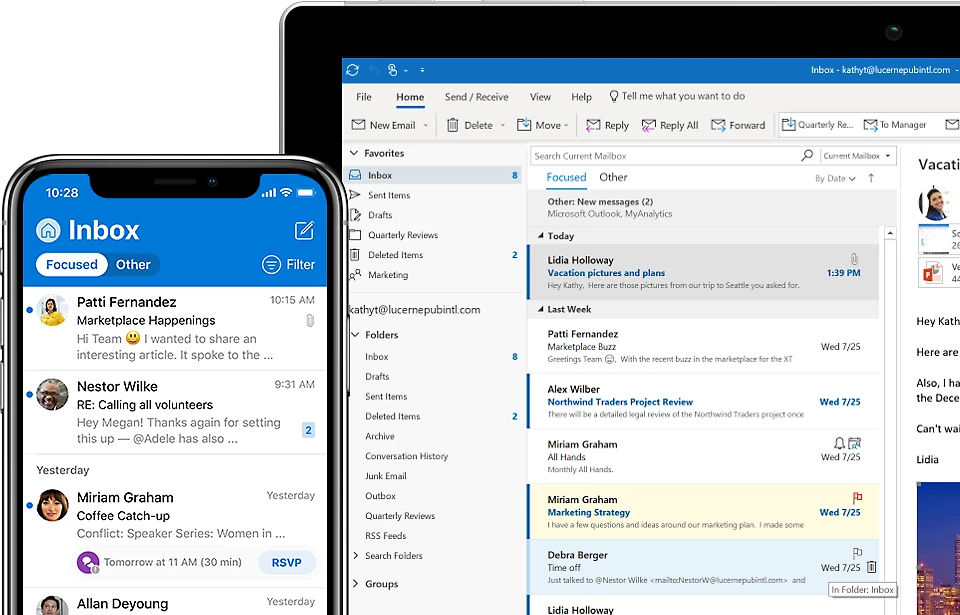
Managing a flood of emails can be overwhelming. Take advantage of Outlook’s folder and category features to keep your inbox organized. Create folders based on projects, clients, or specific categories to sort and store emails systematically. Use categories to color-code and prioritise emails, making it easier to locate and manage important messages. By keeping your inbox organised, you will reduce clutter and improve your ability to find information quickly.
Microsoft 365 Learn Video | Outlook Categories
Microsoft 365 Learn Video | Outlook Folders
Harness the Power of Rules:
Outlook’s rules feature allows you to automate email management tasks. Set up rules to automatically move emails to specific folders, forward messages to designated recipients, or flag messages for follow-up. By creating and customizing rules, you can streamline your email workflow, reduce manual intervention, and ensure that important emails are given the attention they deserve.
Microsoft 365 Learn Video | Outlook Rules
Utilise Quick Steps for Efficiency:
Quick Steps is a time-saving feature in Outlook that allows you to automate common actions with just a single click. Customize Quick Steps to perform actions such as replying with a template, moving emails to specific folders, or forwarding messages to a team. By creating personalised Quick Steps, you can significantly speed up repetitive tasks and increase your overall productivity.
Microsoft 365 Learn Article | Quick Steps
Optimise Calendar and Scheduling:
Outlook’s calendar functionality is a powerful tool for managing your schedule and staying organised. Leverage features like color-coding, reminders, and recurring events to keep track of appointments, meetings, and deadlines. Use the Scheduling Assistant to find suitable meeting times, avoid conflicts, and streamline the process of setting up meetings with colleagues or clients. By harnessing the full potential of Outlook’s calendar, you can optimize your time management and ensure you never miss an important event.
Microsoft 365 Learn Videos | Welcome to Your Calendar
Explore Add-ins for Enhanced Functionality:
Outlook offers a wide range of add-ins that extend its capabilities and integrate with other applications. Explore the Microsoft AppSource marketplace or the Office Store to find add-ins that suit your needs. Add-ins can provide features such as email tracking, project management integration, CRM integration, email analytics, and more. By leveraging add-ins, you can customise Outlook to align with your specific requirements and boost your productivity. You may need to discuss the use of add-ins with your IT team before you proceed.
Microsoft 365 Learn Article | Getting Add-Ins in Outlook
Master Search and Filter Tools:
Outlook’s search and filter tools can save you considerable time when trying to locate specific emails or information. Use advanced search options, such as searching by sender, subject, or date range, to narrow down your search results effectively. Use filters to display emails based on criteria like unread messages, flagged items, or specific categories. By becoming proficient in Outlook’s search and filter tools, you will spend less time hunting for information and more time focused on essential tasks.
Microsoft 365 Learn Video | Search and Filter Email
Conclusion…
Outlook is a powerful tool that extends far beyond email management. By implementing the tips and techniques outlined in this blog post, you can unlock the full potential of Outlook and transform it into a productivity powerhouse. Organise your emails with folders and categories, automate tasks with rules and Quick Steps, optimize your calendar and scheduling, explore add-ins for additional functionality, and master search and filter tools. By harnessing the full capabilities of Outlook, you will streamline your workflow, improve efficiency, and take control of your productivity like never before.
If you have any questions regarding Outlook functionality, or if you would like a quote for Microsoft 365 services, then please don’t hesitate to contact our friendly team, who will be happy to help with anything you may need.
The Cirrus Team