Cloud, IT Services, Microsoft, Tips
Mastering Microsoft Word: Unleashing the Full Potential of Your Document Creation
Jun
Microsoft Word is a versatile word processing application that offers a plethora of features to enhance your document creation and formatting. While many users are familiar with the basic functions, there are numerous hidden gems and advanced techniques that can significantly improve your productivity and efficiency. In this blog post, we’ll explore valuable tips and tricks to help you unleash the full potential of Microsoft Word.
Harness the Power of Styles:
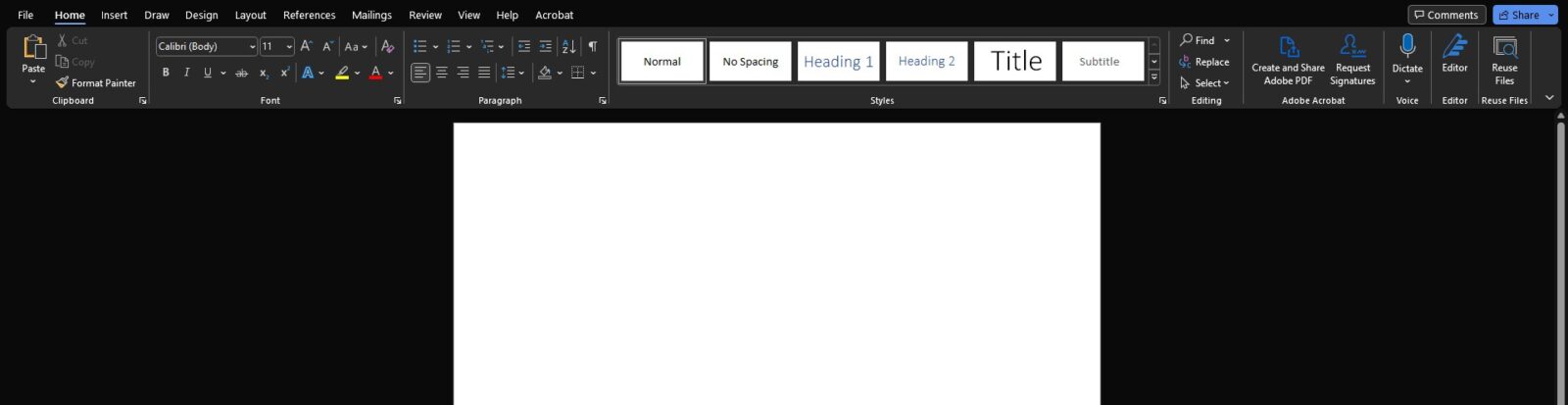
Styles in Microsoft Word allow you to format your documents quickly and consistently. Instead of manually applying font, size, and formatting to each section, utilise styles to create a uniform and professional look. Define and customise heading styles, paragraph styles, and character styles to suit your needs. By utilising styles effectively, you can save time and effortlessly maintain a consistent visual identity throughout your documents.
Microsoft 365 Learn Video | Word Styles
Microsoft 365 Learn Video | Word Themes
Master Page Layout & Section Breaks:
Page layout plays a vital role in creating visually appealing and well-structured documents. Learn to work with page breaks and section breaks to control page orientation, margins, headers, footers, and page numbering. Utilise section breaks to have different headers and footers in various parts of your document. By mastering page layout and section breaks, you can create complex documents with ease and precision.
Microsoft 365 Learn Article | Page Breaks
Microsoft 365 Learn Article | Page Orientation
Leverage Collaboration Tools:
Microsoft Word offers robust collaboration and review features that make it easy to work with others on a document. Utilise the Track Changes feature to keep track of edits and comments made by different collaborators. Use the Comments feature to add and reply to comments, facilitating discussion and feedback. Enable real-time collaboration to work simultaneously with others, making document collaboration seamless and efficient.
Microsoft 365 Learn Article | Word Collaboration Basics
Automate with Macros:
Macros allow you to automate repetitive tasks in Word. If you find yourself performing the same actions repeatedly, such as formatting, inserting specific text, or running complex procedures, consider creating a macro. Macros can help you save time, reduce errors, and increase productivity. Learn the basics of recording and editing macros to tailor Word to your specific workflow requirements.
Microsoft 365 Learn Articles | Macro Basics
Utilise Advanced Formatting & Layout Options:
Microsoft Word offers a wide range of advanced formatting and layout options to enhance the visual appeal of your documents. Explore features like columns, tables, and text boxes to create visually stunning layouts. Utilise advanced formatting options such as drop caps, text effects, and shadows to add a professional touch. By leveraging these advanced features, you can create documents that stand out and effectively convey your message.
Microsoft 365 Learn Video | Insert a Table
Microsoft 365 Learn Video | Insert a Watermark
Work Smarter with Templates & Customisation:
Save time and streamline your document creation process by utilising Word templates. Microsoft Word provides a range of pre-designed templates for various document types. You can also create your custom templates with your preferred formatting, styles, and content. By utilising templates and customising Word to suit your needs, you can expedite document creation and maintain consistency across your organisation’s materials.
Microsoft 365 Learn Articles | Creating Templates
Conclusion…
Microsoft Word is a powerful tool for document creation and formatting. By implementing the tips and techniques mentioned in this blog post, you can unlock the full potential of Word and take your document creation to the next level. Harness the power of styles, master page layout and section breaks, utilise collaboration and review tools, automate tasks with macros, explore advanced formatting options, and leverage templates and customisation. By becoming proficient in these aspects of Word, you’ll enhance your productivity, create professional documents, and streamline your workflow.
The Cirrus Team