Category Archives: Tips

The Hidden Gems of Microsoft 365 Apps & Services

365

We all know that Microsoft 365 boasts a powerful Office application suite, but what about it’s other apps & services, included free of charge?

When most people think about Microsoft 365 (formerly Office 365), they think of the core Office application suite software: Outlook for Email, Word for rich document editing, Excel for spreadsheets, among others.

But surprisingly, there are a lot of features included with Microsoft 365 that many people know nothing about! Often, these features & apps can provide the same functions as popular third-party paid software, and they’re already included with the cost of your monthly Microsoft subscription. Crazy, right?! That’s why the team here at Cirrus have spent the past few weeks trying out these tools, so we can bring our valued customers up to speed on our favourites.

In this blog post, we’ll be looking at Microsoft Lists, Planner, Sway & Forms, while breaking them down into their most handy features & best use cases.

Here’s a breakdown of each of these apps, so you can skip ahead to ones that interest you the most:

Microsoft Lists is a versatile list management and organization tool that helps individuals and teams track information, streamline processes, and stay organised. It allows users to create lists from scratch or choose from pre-built templates, providing a structured framework to capture and organise data. Each list consists of columns that define the type of information to be stored.

Microsoft Planner is an intuitive, visual interface for managing tasks & projects. It allows teams to create projects or plans, which act as containers for organising tasks and related activities. Within each plan, team members can create individual tasks, assign them to team members, set due dates, and add relevant details and attachments.

Microsoft Sway is a digital storytelling and presentation tool that allows users to create interactive and visually appealing presentations, reports, newsletters, and more. It provides a unique way to highlight information and ideas by combining text, images, videos, and other media elements.

Microsoft Forms is a powerful survey and data collection tool that enables users to create, distribute, and analyse forms and questionnaires. It allows users to create surveys, quizzes, polls, and questionnaires with ease. Users can design forms using a variety of question types and formatting options.
Office 365 app logos.svg

Microsoft Lists

As mentioned above, Microsoft lists is a versatile list management and organisation tool. Here are its key features:

List Creation and Customisation: Users can create lists tailored to their specific needs, whether it’s a simple to-do list, inventory tracking, issue tracking, or project management. Lists can be customized with columns, data types, and formatting options to match unique requirements.

Column Types and Formatting: Microsoft Lists supports various column types, such as text, number, date, choice, and more. These column types enable users to capture and categorise diverse types of information accurately. Conditional formatting can be applied to highlight important data or create visual cues based on specific criteria.

Collaboration and Sharing: Multiple team members can collaborate on lists simultaneously, making it easy to share and edit data in real-time. Permissions can be set to control access levels and ensure data privacy and security.

Views and Filtering: Users can create different views of the same list to focus on specific information or arrange data in different formats, such as grid view, gallery view, or calendar view. Filtering options allow users to narrow down the data based on specific criteria.

Integration with Microsoft 365: Microsoft Lists seamlessly integrates with other Microsoft 365 applications like SharePoint, Teams, and Power Automate. This integration enables users to access lists from various tools, embed lists in SharePoint pages, and automate processes based on list data.

Overall, it’s a very impressive & immensely powerful, while still being easy-to-use, list management tool. But when might you use it?

Project Tracking: Microsoft Lists is ideal for managing and tracking projects, enabling teams to create lists for tasks, milestones, and deadlines. Users can track progress, assign tasks, and update statuses, ensuring everyone stays aligned and informed.

Issue Tracking: Lists can be used to track and manage issues or tickets. Columns can capture details such as issue description, priority, assigned person, and resolution status, facilitating efficient issue resolution and providing visibility to the team.

Inventory Management: Lists can help track and manage inventory items, including quantities, locations, and purchase dates. This enables teams to monitor stock levels, plan restocking, and avoid inventory shortages.

Microsoft Planner

Microsoft Planner is an intuitive visual interface for managing tasks and projects. What features does it have, you ask? Keep reading…

Task Management: Users can create, assign, and track tasks within a project. Each task can be customised with details, labels, and attachments, making it easier to communicate requirements and expectations.

Collaboration: Planner facilitates team collaboration by providing a centralised space for discussions and file sharing. Team members can comment on tasks, attach documents, and communicate progress updates, fostering better communication and coordination.

Visual Planning: Planner offers a visual, Kanban-style board view, where tasks are represented as cards that can be moved across customizable columns such as “To Do,” “In Progress,” and “Completed.” This visual approach provides a clear overview of the project’s status and helps in prioritizing work.

Notifications and Reminders: Users receive notifications and reminders for task assignments, due dates, and updates, ensuring that everyone stays informed and on track with their responsibilities.

Integration with Microsoft 365: Planner seamlessly integrates with other Microsoft 365 applications like Outlook, Teams, and SharePoint, enabling easy access to tasks, deadlines, and related documents from within familiar tools.

Overall, it could be used as a much cheaper (free! – if you already subscribe to MS365) alternative to Microsoft Project. Need some ideas of when to use it?

Project Management: Planner is ideal for managing projects of any size. It allows teams to create plans, break them down into tasks, assign responsibilities, and monitor progress, ensuring that everyone is aligned and aware of their deliverables.

Team Collaboration: Planner enhances team collaboration by providing a shared workspace where team members can communicate, share files, and work together towards project goals.

Task Tracking: With Planner, individuals and teams can track tasks and their progress, helping them stay organized, prioritize work, and meet deadlines effectively.

Personal Productivity: Even for personal tasks and to-do lists, Planner can be used as a lightweight productivity tool to stay organized and manage individual responsibilities efficiently.

Battle of the Task & Project Managers: Planner vs Lists

You’ve just read the descriptions of Microsoft Planner & Microsoft Lists and are probably thinking “wait a minute, don’t they do the exact same thing?”. While yes, they do share similar features, and if you choose can be used in similar ways, here’s a comparison of when we’d recommend using one or the other:

Use Microsoft Lists when you need…

Data Organisation: Microsoft Lists excels at organizing and managing structured data. It provides a flexible framework for creating and customising lists to track several types of information. If your primary focus is on capturing and organizing data, such as inventories, issue tracking, or project milestones, Microsoft Lists offers the necessary flexibility.

Data-centric Workflows: Lists are ideal for scenarios where data collection, analysis, and reporting are paramount. If your team primarily deals with data entry, data management, and reporting, Microsoft Lists provides robust features for capturing and organizing information efficiently.

Customisation: Microsoft Lists allows for extensive customization of lists and columns, including data types, conditional formatting, and views. If you need a high degree of flexibility to tailor your tracking system to specific requirements, Microsoft Lists is the preferable choice.

Use Microsoft Planner when you need…

Task Management and Collaboration: Microsoft Planner is designed specifically for task management and team collaboration. It provides a visual, Kanban-style board for creating and tracking tasks, assigning them to team members, and monitoring progress. If your primary goal is managing projects, assigning tasks, and fostering collaboration, Microsoft Planner is the recommended choice.

Visual Workflow: Planner’s visual board view allows for easy visualization of tasks and their progress across different stages. If you prefer a visual representation of tasks that can be easily moved across columns representing different project stages, Microsoft Planner offers a more intuitive and visual approach.

Integration with Microsoft 365: If your team heavily relies on other Microsoft 365 tools such as Outlook, Teams, and SharePoint, Microsoft Planner seamlessly integrates with these applications, providing a cohesive workflow and centralized access to tasks and related documents.

Microsoft Forms

There isn’t a business in the world that doesn’t gather data or use forms for internal processes. In recent years, businesses have been moving away from traditional paper forms to digital forms, often relying on paid services to do so. But, Microsoft, as ever, has a tool for that; enter Microsoft Forms. Here is its key features:

Form Creation and Customisation: Users can create forms from scratch or choose from pre-designed templates to save time. Forms can be customised with various question types, including multiple-choice, text, rating, and more. Formatting options such as themes, images, and branching logic enhance the visual appeal and interactivity of the forms.

Response Collection: Microsoft Forms provides multiple ways to distribute forms to respondents. Users can share forms via email, links, or embed them on websites or Microsoft Teams. Forms can be accessed on various devices, making it convenient for respondents to provide feedback.

Real-Time Response Tracking: As respondents submit their responses, Microsoft Forms automatically collects and compiles the data in real-time. Users can view response summaries, download response data, and track response rates to gain insights quickly.

Collaboration and Sharing: Multiple users can collaborate on form creation and analysis. Users can share forms with colleagues, collaborate on form design, and collectively view and analyze responses.

Analysis and Reporting: Microsoft Forms offers built-in analytics features that allow users to analyze and visualize the collected data. Response data can be presented through charts, graphs, and summaries, helping users gain meaningful insights and make informed decisions.

Here’s some ideas of when to use Microsoft Forms:

Surveys and Feedback: Microsoft Forms is perfect for creating surveys and collecting feedback from customers, employees, or event attendees. Users can gather opinions, suggestions, and satisfaction ratings, enabling organisations to make data-driven improvements.

Quizzes and Assessments: Teachers and educators can use Microsoft Forms to create quizzes, tests, or assessments for students. Automatic scoring and immediate feedback enhance the learning experience and save time in grading.

Event Registrations: Microsoft Forms can be utilized to create event registration forms, enabling organizers to collect participant information, preferences, and RSVPs.

Data Collection: Forms can serve as data collection tools for research studies, market research, or opinion polls. Users can gather structured data on assorted topics and analyse the results for insights.

Employee Surveys: Microsoft Forms can be used for internal surveys to gather employee feedback, measure satisfaction, conduct performance evaluations, or assess training needs.

Microsoft Sway

Microsoft Sway is a wonderful way to tell stories and give presentations using a mixed-media approach to visual storytelling. It’s a bit like PowerPoint but geared more towards quick & easy creation of stunning presentations on the web. Here are Sway’s key features:

Visual Storytelling: Sway enables users to create immersive presentations by combining text, images, videos, and other media elements in a visually appealing manner. Users can arrange and customise content to create a narrative flow and capture the attention of their audience.

Responsive Design: Sway automatically adapts to different screen sizes and devices, ensuring a consistent and optimized viewing experience on desktops, laptops, tablets, and smartphones. This responsive design feature allows users to create presentations that are accessible across various platforms.

Integration with Multimedia and Web Content: Sway seamlessly integrates with various media sources, including OneDrive, YouTube, Twitter, and more. Users can embed videos, audio clips, social media posts, and interactive web content directly into their presentations, enhancing engagement and interactivity.

Collaboration and Sharing: Multiple users can collaborate on Sway presentations simultaneously, making it easy to gather input and work together in real-time. Presentations can be shared with others through links, email, or embedded in websites.

Intelligent Design Assistance: Sway includes built-in design features that suggest design ideas, layouts, and color schemes based on the content users provide. This helps users create visually appealing presentations even if they don’t have design expertise.

Sway vs PowerPoint

Design Flexibility: PowerPoint offers more control over design elements, allowing users to precisely customise the layout, animations, and transitions. Sway, on the other hand, focuses on providing dynamic and responsive design options with fewer manual controls.

Presentation Style: PowerPoint is commonly used for linear presentations with a slide-by-slide structure, while Sway offers a more fluid and non-linear approach to storytelling, allowing for interactive and scrolling presentations.

Collaboration: Both Sway and PowerPoint support collaboration, but Sway’s web-based nature makes it more suitable for real-time collaboration and sharing across multiple devices.

Content Integration: Sway excels in integrating multimedia and web content seamlessly, making it ideal for creating presentations that incorporate a wide range of media elements. PowerPoint also supports multimedia integration but may require more manual steps.

Which one to use?

Choose Microsoft Sway if you:

    • Want to create visually stunning and interactive presentations with ease.
    • Need a responsive and adaptable design that works well across different devices.
    • Want to incorporate multimedia elements and web content seamlessly.
    • Prefer a more fluid and non-linear approach to storytelling.

Choose Microsoft PowerPoint if you:

    • Require more precise control over design elements, animations, and transitions.
    • Prefer a traditional slide-based structure for your presentations.
    • Need advanced features for complex presentations or detailed data analysis.
    • Have a preference for a familiar and well-established presentation tool.

In summary, Microsoft Sway offers a unique and visually engaging approach to digital storytelling, while PowerPoint provides comprehensive features for creating traditional presentations. The choice between Sway and PowerPoint depends on the specific needs of your presentation and your preference for design flexibility and interactive elements.

What next?

We just covered a lot of ground, so sit back, take a deep breath, and congratulate yourself for taking this journey of technological discovery. You could save your business time, effort, and money by utilising the Microsoft apps & services mentioned in this post; or you could carry on as you were, not changing a thing. The choice is yours.

We hope that you’ve enjoyed our series of Microsoft 365-centric blog posts, where we’ve sought to bring greater value to Microsoft customer’s existing subscriptions, and that you’ve gained some valuable insights & tips from the content.

Don’t forget that, as a Microsoft Partner, we’re able to provide first-class Microsoft 365 solutions and support, so if you have any questions about the content of our recent blog posts or have an idea of how Microsoft 365 apps & services might benefit your business; contact us today for a friendly, quick non-salesy chat. Here at Cirrus, we’re by your side every step of the way.

The Cirrus Team
Dropsuite Mail Signature Banner V2

Microsoft Excel Mastery: Unleashing the Full Potential of Your Data Analysis and Visualisation

Microsoft Excel is a powerful spreadsheet application that goes beyond basic calculations. It offers a wide range of features and functions that enable you to analyse data, perform complex calculations, and create insightful visualisations. In this blog post, we’ll explore valuable tips and techniques to help you unlock the full potential of Microsoft Excel and take your data analysis and visualisation to new heights.


Master Formulas and Functions:

Formulas and functions are the backbone of Excel’s power. Expand your knowledge of Excel’s extensive library of formulas and functions to perform complex calculations and manipulate data effectively. Learn commonly used functions like SUM, AVERAGE, IF, VLOOKUP, and COUNTIFS to streamline your data analysis tasks. Explore advanced functions like INDEX-MATCH, SUMIFS, and PIVOT tables to gain deeper insights into your data and generate meaningful reports.

Microsoft 365 Learn Videos | Formulas and Functions in Excel


Data Validation & Conditional Formatting:

Excel provides powerful tools for data validation and conditional formatting. Use data validation to set rules and constraints on data entry, ensuring data integrity and consistency. Apply conditional formatting to highlight trends, outliers, or specific criteria within your data. By utilising these features, you can maintain data accuracy, identify patterns, and visualise your data effectively.

Microsoft 365 Learn Video | Apply Data Validation to Cells

Microsoft 365 Learn Video | Conditional Formatting


PivotTables and PivotCharts:

PivotTables and PivotCharts are Excel’s dynamic tools for data analysis and visualisation. Utilise PivotTables to summarise and analyse large datasets, generate reports, and identify trends. PivotCharts complement PivotTables by providing visual representations of your data, making it easier to understand and communicate insights. Mastering PivotTables and PivotCharts will enable you to extract valuable information and present it in a visually compelling manner.

Microsoft 365 Learn Video | Create a PivotTable

Microsoft 365 Learn Video | Create a PivotChart


Data Analysis Tools:

Excel offers a range of built-in data analysis tools that can assist you in uncovering patterns, correlations, and trends in your data. Dive into the Data Analysis Toolpak, which includes features like regression analysis, descriptive statistics, histogram creation, and more. Explore the “What-If” Analysis tool to perform scenario planning and sensitivity analysis. By utilising these data analysis tools, you can make informed decisions and gain a deeper understanding of your data.

Microsoft 365 Learn Articles | ToolPak for Complex Data Analysis


Visualise Data with Charts and Graphs:

Excel’s charting capabilities allow you to create powerful visual representations of your data. Explore different chart types, such as bar charts, line charts, pie charts, and scatter plots, to showcase trends, comparisons, and relationships within your data. Customise your charts with labels, titles, and formatting options to create impactful visualisations. By leveraging Excel’s charting features, you can communicate data-driven insights effectively and engage your audience.

Microsoft 365 Learn Video | Create a Chart from Start to Finish


Automate Tasks with Macros and VBA:

Excel’s macro and Visual Basic for Applications (VBA) functionality enables you to automate repetitive tasks and create customised solutions. Record macros to automate common procedures, such as data cleaning, formatting, or report generation. Dive into VBA to create more complex automation and develop custom functionalities tailored to your specific needs. By harnessing the power of macros and VBA, you can save time, reduce errors, and boost your productivity in Excel.

Microsoft 365 Learn Article | Creating Macros In Excel

Microsoft 365 Learn Article | Getting started with VBA in Office


Conclusion…

Microsoft Excel is a versatile tool for data analysis and visualisation. By implementing the tips and techniques outlined in this blog post, you can unlock the full potential of Excel and take your data analysis to new heights. Master formulas and functions, leverage data validation and conditional formatting, harness PivotTables and PivotCharts, explore data analysis tools, visualise data with charts and graphs, and automate tasks with macros and VBA. By becoming proficient in these Excel features, you’ll enhance your data analysis capabilities, generate meaningful insights, and make informed decisions that drive success.

The Cirrus Team

Dropsuite Mail Signature Banner V2

Mastering Microsoft Word: Unleashing the Full Potential of Your Document Creation

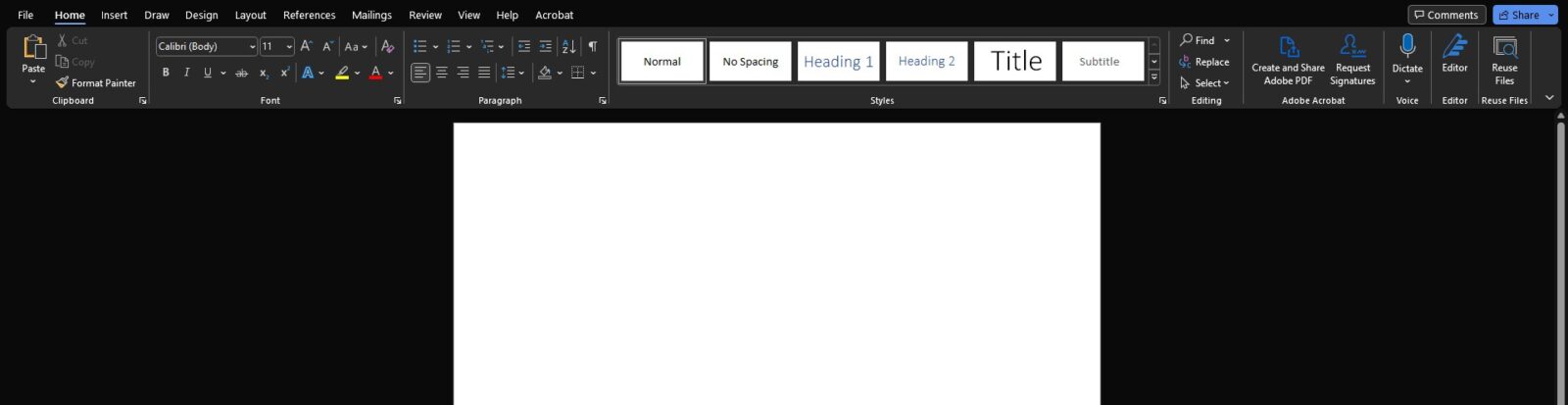
WordScreenshot

Microsoft Word is a versatile word processing application that offers a plethora of features to enhance your document creation and formatting. While many users are familiar with the basic functions, there are numerous hidden gems and advanced techniques that can significantly improve your productivity and efficiency. In this blog post, we’ll explore valuable tips and tricks to help you unleash the full potential of Microsoft Word.


Harness the Power of Styles:

Styles in Microsoft Word allow you to format your documents quickly and consistently. Instead of manually applying font, size, and formatting to each section, utilise styles to create a uniform and professional look. Define and customise heading styles, paragraph styles, and character styles to suit your needs. By utilising styles effectively, you can save time and effortlessly maintain a consistent visual identity throughout your documents.

Microsoft 365 Learn Video | Word Styles

Microsoft 365 Learn Video | Word Themes


Master Page Layout & Section Breaks:

Page layout plays a vital role in creating visually appealing and well-structured documents. Learn to work with page breaks and section breaks to control page orientation, margins, headers, footers, and page numbering. Utilise section breaks to have different headers and footers in various parts of your document. By mastering page layout and section breaks, you can create complex documents with ease and precision.

Microsoft 365 Learn Article | Page Breaks

Microsoft 365 Learn Article | Page Orientation


Leverage Collaboration Tools:

Microsoft Word offers robust collaboration and review features that make it easy to work with others on a document. Utilise the Track Changes feature to keep track of edits and comments made by different collaborators. Use the Comments feature to add and reply to comments, facilitating discussion and feedback. Enable real-time collaboration to work simultaneously with others, making document collaboration seamless and efficient.

Microsoft 365 Learn Article | Word Collaboration Basics


Automate with Macros:

Macros allow you to automate repetitive tasks in Word. If you find yourself performing the same actions repeatedly, such as formatting, inserting specific text, or running complex procedures, consider creating a macro. Macros can help you save time, reduce errors, and increase productivity. Learn the basics of recording and editing macros to tailor Word to your specific workflow requirements.

Microsoft 365 Learn Articles | Macro Basics


Utilise Advanced Formatting & Layout Options:

Microsoft Word offers a wide range of advanced formatting and layout options to enhance the visual appeal of your documents. Explore features like columns, tables, and text boxes to create visually stunning layouts. Utilise advanced formatting options such as drop caps, text effects, and shadows to add a professional touch. By leveraging these advanced features, you can create documents that stand out and effectively convey your message.

Microsoft 365 Learn Video | Insert a Table

Microsoft 365 Learn Video | Insert a Watermark


Work Smarter with Templates & Customisation:

Save time and streamline your document creation process by utilising Word templates. Microsoft Word provides a range of pre-designed templates for various document types. You can also create your custom templates with your preferred formatting, styles, and content. By utilising templates and customising Word to suit your needs, you can expedite document creation and maintain consistency across your organisation’s materials.

Microsoft 365 Learn Articles | Creating Templates


Conclusion…

Microsoft Word is a powerful tool for document creation and formatting. By implementing the tips and techniques mentioned in this blog post, you can unlock the full potential of Word and take your document creation to the next level. Harness the power of styles, master page layout and section breaks, utilise collaboration and review tools, automate tasks with macros, explore advanced formatting options, and leverage templates and customisation. By becoming proficient in these aspects of Word, you’ll enhance your productivity, create professional documents, and streamline your workflow.

The Cirrus Team

Dropsuite Mail Signature Banner V2

Mastering Outlook: Unleashing the Full Potential of Your Email and Productivity Hub

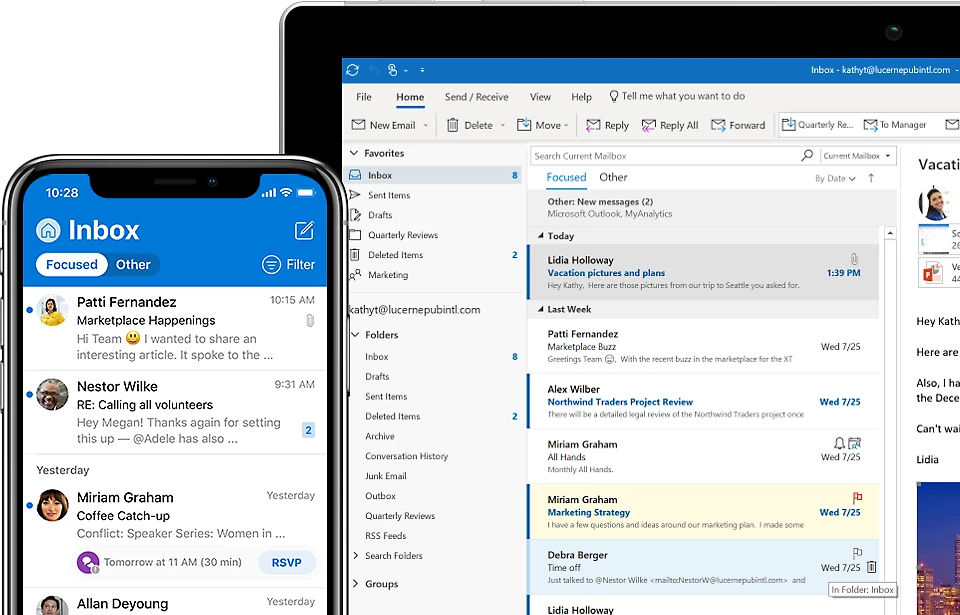
Microsoft Outlook Office

Outlook is much more than just an email client. With its extensive range of features and integrations, it serves as a powerful productivity hub. However, many users only scratch the surface of what Outlook can do. In this blog post, we will dive into some valuable tips and techniques to help you get the most out of Outlook and boost your productivity to new heights.


Organise with Folders and Categories:

Managing a flood of emails can be overwhelming. Take advantage of Outlook’s folder and category features to keep your inbox organized. Create folders based on projects, clients, or specific categories to sort and store emails systematically. Use categories to color-code and prioritise emails, making it easier to locate and manage important messages. By keeping your inbox organised, you will reduce clutter and improve your ability to find information quickly.

Microsoft 365 Learn Video | Outlook Categories

Microsoft 365 Learn Video | Outlook Folders


Harness the Power of Rules:

Outlook’s rules feature allows you to automate email management tasks. Set up rules to automatically move emails to specific folders, forward messages to designated recipients, or flag messages for follow-up. By creating and customizing rules, you can streamline your email workflow, reduce manual intervention, and ensure that important emails are given the attention they deserve.

Microsoft 365 Learn Video | Outlook Rules


Utilise Quick Steps for Efficiency:

Quick Steps is a time-saving feature in Outlook that allows you to automate common actions with just a single click. Customize Quick Steps to perform actions such as replying with a template, moving emails to specific folders, or forwarding messages to a team. By creating personalised Quick Steps, you can significantly speed up repetitive tasks and increase your overall productivity.

Microsoft 365 Learn Article | Quick Steps


Optimise Calendar and Scheduling:

Outlook’s calendar functionality is a powerful tool for managing your schedule and staying organised. Leverage features like color-coding, reminders, and recurring events to keep track of appointments, meetings, and deadlines. Use the Scheduling Assistant to find suitable meeting times, avoid conflicts, and streamline the process of setting up meetings with colleagues or clients. By harnessing the full potential of Outlook’s calendar, you can optimize your time management and ensure you never miss an important event.

Microsoft 365 Learn Videos | Welcome to Your Calendar


Explore Add-ins for Enhanced Functionality:

Outlook offers a wide range of add-ins that extend its capabilities and integrate with other applications. Explore the Microsoft AppSource marketplace or the Office Store to find add-ins that suit your needs. Add-ins can provide features such as email tracking, project management integration, CRM integration, email analytics, and more. By leveraging add-ins, you can customise Outlook to align with your specific requirements and boost your productivity. You may need to discuss the use of add-ins with your IT team before you proceed.

Microsoft 365 Learn Article | Getting Add-Ins in Outlook


Master Search and Filter Tools:

Outlook’s search and filter tools can save you considerable time when trying to locate specific emails or information. Use advanced search options, such as searching by sender, subject, or date range, to narrow down your search results effectively. Use filters to display emails based on criteria like unread messages, flagged items, or specific categories. By becoming proficient in Outlook’s search and filter tools, you will spend less time hunting for information and more time focused on essential tasks.

Microsoft 365 Learn Video | Search and Filter Email


Conclusion…

Outlook is a powerful tool that extends far beyond email management. By implementing the tips and techniques outlined in this blog post, you can unlock the full potential of Outlook and transform it into a productivity powerhouse. Organise your emails with folders and categories, automate tasks with rules and Quick Steps, optimize your calendar and scheduling, explore add-ins for additional functionality, and master search and filter tools. By harnessing the full capabilities of Outlook, you will streamline your workflow, improve efficiency, and take control of your productivity like never before.

If you have any questions regarding Outlook functionality, or if you would like a quote for Microsoft 365 services, then please don’t hesitate to contact our friendly team, who will be happy to help with anything you may need.

The Cirrus Team

Dropsuite Mail Signature Banner V2

Unlocking the Full Potential of your Microsoft 365 Subscription: The Comprehensive Guide

365

Here at Cirrus, we love two things: Great tech and great value. A Microsoft 365 subscription includes an incredibly powerful suite of tools that empowers businesses of all sizes to enhance productivity, collaboration, and efficiency. However, many customers are unaware of the full range of features and benefits they can leverage to maximize the value of their subscription. In this blog post, we’ll explore some valuable tips and strategies to help you get the most out of your existing Microsoft 365 subscription.

Stay Up to Date:

Microsoft continuously introduces new features, enhancements, and security updates to Office 365. To ensure you have access to all the latest improvements, it’s crucial to keep your applications up to date. Enable automatic updates or regularly check for updates to benefit from new functionalities and bug fixes, helping you work smarter and more efficiently. However, your IT team may advise not to apply automatic updates, as their monitoring software may do this for you.

Collaborate Seamlessly with SharePoint and OneDrive:

Office 365 provides SharePoint and OneDrive, two powerful tools for efficient file storage, sharing, and collaboration. Take advantage of SharePoint’s team sites to store and organize documents, enabling easy access for your team members. Use OneDrive for individual file storage and sharing. By leveraging these tools effectively, you’ll streamline collaboration, boost productivity, and ensure everyone is working on the most up-to-date version of a document.

Embrace Teams for Effective Communication:

Microsoft Teams is a robust communication and collaboration platform within Office 365. It allows teams to chat, make audio and video calls, schedule meetings, and share files all in one place. Encourage your team to embrace Teams as a central hub for communication, replacing scattered emails and reducing the need for multiple applications. Explore its various features, such as channels, document collaboration, and integration with other Office 365 apps, to enhance your team’s productivity and efficiency.

Automate with Power Automate:

Power Automate (formerly Microsoft Flow) enables you to automate repetitive tasks and streamline workflows across multiple applications. Spend less time on manual, mundane activities by creating automated workflows that trigger specific actions. For example, you can automatically save email attachments to OneDrive, create custom approval processes, or send notifications when specific conditions are met. By harnessing the power of Power Automate, you’ll free up valuable time for more critical tasks and increase overall productivity.

Explore Advanced Data Analysis with Excel:

While Excel is widely known for its basic spreadsheet functionality, it offers advanced tools for data analysis and visualization. Dive deeper into Excel’s capabilities by exploring features like PivotTables, Power Query, and Power Pivot. These tools can help you analyse large datasets, identify trends, and make data-driven decisions. Excel’s advanced functionalities will enable you to uncover valuable insights and gain a competitive edge in your business operations.

Microsoft Office 365 offers a vast array of features and tools that can significantly enhance your organization’s productivity, collaboration, and security. By implementing the tips mentioned above, you’ll unlock the full potential of your Office 365 subscription, driving value and efficiency across your business. Stay up to date, explore the various applications, and encourage your team to embrace the power of Office 365. By doing so, you’ll pave the way for improved workflows, seamless collaboration, and a more productive work environment, because here at Cirrus, we offer a total business solution.

Dropsuite Mail Signature Banner V2

Tips & Tricks: Identifying Malicious Emails

Photo by Torsten Dettlaff: https://www.pexels.com/photo/black-and-gray-digital-device-193003/

In today’s business landscape, Cyber Security plays a pivotal role in safeguarding operations, which we know you value as much as we do. With the rise of Artificial Intelligence, Cyber Criminals are finding it easier and easier to produce convincing spam emails that could fool the best of us into replying, or paying money into an account we shouldn’t. That’s why we’ve put together our top five Tips & Tricks on identifying potentially malicious emails, and how you should deal with them.


Tip 1 – Check the Email Address

Most email apps will just show you the ‘Display Name’ (usually the first & last name) of the sender. This is great for convenience but doesn’t give the full picture. You should always check that the email address itself appears to be genuine by scrutinizing it for any spelling or grammar errors & out of place characters or numbers. For example, would you notice if one of our emails came from an address ending in the domain @cirrusit.co.uk, rather than our actual domain; cirrusits.co.uk?

Microsoft Outlook (Desktop app) usually shows the email address next to the sender’s name, when reading an email, in <> brackets, for example:

FROM: John Doe <john.doe@domain.com>

Alternatively, you may need to hover over the sender’s display name to see the full address.


Tip 2 – Look out for Urgent or Alarming Language

Most malicious emails will attempt to create a sense of urgency in the recipient to pressure them into doing something they shouldn’t. If you receive an email from your ‘boss’ asking for an immediate payment into an account, or a contract will collapse, consider whether this is a realistic situation before responding to the pressure of the message.


Tip 3 – Verify all Sensitive & Financial Requests via an Alternate Channel

Any requests for access to sensitive or personal information, or requests for the transfer of funds, should be verified by a secondary comms channel such as telephone. If you receive a request from your manager by email to make a payment, call them first to confirm – they’ll appreciate your awareness and care on these matters.


Tip 4 – Be Wary of Links & Attachments

Always be wary of any link or attachment from a sender that you haven’t verified the identify of. Hover over any links in an email to view the full URL and assess whether the embedded link ‘YouTube Video’ is sending you to YouTube.com, for example, or somewhere suspicious. Attachments should be treated with even greater caution, as even just previewing a document can infect your PC with malware. If the file name sounds suspicious or generic (i.e BUSINESS INVOICE.docx) – ignore & report it to your IT team. Don’t open or preview any attachment that doesn’t come from a sender you have verified & trust, even if it seems legitimate.


Tip 5 – Trust Your Instincts

If your gut is telling you that an email doesn’t seem genuine, then trust that feeling. Your IT department (us) are here to help with any issue you may be facing, and that includes identifying a potentially malicious email. We can never confirm or deny the authenticity of any email with 100% certainty but will be able to advise you on a course of action based on the available evidence. Even if the email turns out to be genuine, it’s better to be safe than sorry.